MonetDB via Apache Superset: An Open Source Toolkit for Business Intelligence
The success of a project is ultimately down to the extent to which emerging trends and patterns have been meaningfully interpreted by its stakeholders. It goes without saying that access to accurate, up-to-date, and relevant information puts one in the best possible position to make well-informed decisions, assuming a fact-based, data-driven approach. Following the acquisition of raw data remain the tasks of exploration of the datasets, interpretation of patterns, and the presentation of conclusions drawn.
Such tasks fall in the domain of business intelligence (BI), for which there are a plethora of software tools. One such tool is Apache Superset™, a free and open source web-based application with a SQL editor for data exploration and a no-code interface for creating data visualizations. Given its intuitive user interface and compatibility with MonetDB, Apache Superset should be of interest to newcomers looking to dip their toes into the world of business intelligence and experienced data analysts/scientists alike.
As such, the MonetDB team has developed a BI toolkit comprising Apache Superset with MonetDB as back end. The remainder of this blog post will guide you through the setup.
Prerequisites
To start off, make sure you already have Git, Podman, and Podman Compose installed. Podman was selected as the container engine for this toolkit since it is native to Linux and can run containers without root privileges. It should be noted that the instructions provided in this blog post diverge from the original Superset installation guide given that Docker is used for containerization instead of Podman.
You can check if Podman is already enabled on your machine via the following command:
systemctl status podman
If it is not enabled, execute:
systemctl enable --now podman
Installation and deployment of Superset
Create a local copy of the remote Superset repository on your machine via the following shell command:
git clone https://github.com/apache/superset
Then enter the cloned repository and switch to the branch of the latest official version (which as of writing is Superset 6.1.0):
cd ~/path/to/superset
git checkout tags/6.1.0
To make Superset compatible with Podman, download the following patch file:
superset-v6.1.0-monetdb-podman.patch
Move the file to your local Superset directory and apply the patch via the shell command:
git apply superset-v6.1.0-monetdb-podman.patch
This will modify the docker-compose-image-tag.yml configuration file such that the :z suffix is added to the volume mounts, granting Podman permission to relabel volume content mounted into the containers (read more about labeling volume mounts here). This patch also creates the MonetDB Docker container superset_monetdb using the latest tagged image on Docker Hub. This file is no longer needed once the patch has been applied.
Now run Superset using Podman Compose via the following shell command:
podman compose -f docker-compose-image-tag.yml up -d
The -d option starts Podman Compose as a daemon. It will likely take a moment for Podman Compose to fetch the underlying container images and database examples.
Once complete, proceed to http://localhost:8088/ and log in with the default account:
username: admin
password: admin
You should now have access to your own Superset web interface!
Compatibility with MonetDB
Now remains the task of making your installation of Superset compatible with MonetDB.
While your container environment is still up and running, proceed to Database Connections under Settings in the Superset web application. There you should see an example database with PostgreSQL as back end. Of course you want to add a MonetDB database to the mix 😁
To make this possible, you need to add the pymonetdb and sqlalchemy-monetdb packages to your MonetDB container image. This is automatically taken care of if you proceed with the following instructions.
Download the file below and place it in the ~/path/to/superset/docker directory:
The required versions of the pymonetdb and sqlalchemy-monetdb packages have been specified in this file and will be automatically installed after you have restarted your Superset container environment.
So go ahead and terminate the current session via the following shell command:
podman compose -f docker-compose-image-tag.yml down
Now bring up a new container environment using the same podman compose command from the previous section. The installation of the MonetDB Python packages should occur automatically during this process.
Connecting to a database
It should now be possible to connect to a MonetDB database running in the superset_monetdb container environment. You will now use the IMDb Non-Commercial Datasets to create the same database as demonstrated in a previous blog post.
The dataset files are available for download here. Each compressed file comprises a tab-separated values (TSV) file that contains a single dataset. Once you have extracted all TSV files, place them in a new directory named imdb_datasets (execute mkdir imdb_datasets). Then copy this directory to the /tmp directory in the superset_monetdb container environment via the following shell command:
podman cp ~/path/to/imdb_datasets/ superset_monetdb:/tmp/
Note that the contents of the /tmp directory are automatically deleted upon termination of the active container environment session; the TSV files will not be required for further use once the data has been loaded into the database. The same goes for the following SQL files that can be used to create the schema and load the data respectively:
- imdb_schema.sql →
podman cp ~/path/to/imdb_schema.sql superset_monetdb:/tmp/ - imdb_load_data.sql →
podman cp ~/path/to/imdb_load_data.sql superset_monetdb:/tmp/
MonetDB should already be installed in the superset_monetdb container environment, so go ahead and create a new database with name imdb and password KurosawaIs110%aGreatDirector:
podman exec superset_monetdb monetdb create -p KurosawaIs110%aGreatDirector imdb
Given the change in password for the database administrator, the database will be readily available for client interaction via the mclient interface:
podman exec -it superset_monetdb mclient -u monetdb -d imdb
In the mclient terminal, run the following two commands to read the SQL statements contained in the SQL files:
\< /tmp/imdb_schema.sql
\< /tmp/imdb_load_data.sql
Now that your database is populated with the necessary data, exit the mclient terminal and return to Database Connections in the Superset web application. Click on the blue button + Database, then scroll to the bottom of the Supported databases drop-down list and select Other. Enter the following:
Display Name: IMDb
SQLAlchemy URI: monetdb+pymonetdb://monetdb:KurosawaIs110%aGreatDirector@superset_monetdb:50000/imdb
Press Test Connection and if there are no errors, press Connect to add the database with MonetDB as back end.
You are now ready to explore the database with Superset!
Exploring a database
Proceed to SQL → SQL Lab in the web application and select IMDb (with MonetDB as back end) as the database and sys as the schema (in the top left corner).
To test the database, copy the following query and run it in the SQL editor:
SELECT
        startyear AS "Year",
        primarytitle AS "Film Title",
        averagerating AS "Weighted Average >= 8.0",
        numvotes AS "Number of Votes",
        runtimeminutes AS "Running Time [minutes]"
FROM
        name_basics,
        title_basics,
        title_crew,
        title_ratings
WHERE
        primaryname ILIKE 'Akira Kurosawa' AND
        nconst = SPLITPART(directors, ',', 1) AND
        title_crew.tconst = title_basics.tconst AND
        title_ratings.tconst = title_basics.tconst AND
        averagerating >= 8 AND
        numvotes >= 25000
ORDER BY
        startyear,
        primarytitle
;
The output should be:
+------+---------------------+-------------------------+-----------------+------------------------+
| Year | Film Title          | Weighted Average >= 8.0 | Number of Votes | Running Time [minutes] |
+======+=====================+=========================+=================+========================+
| 1950 | Rashomon            |                   8.100 |          191347 |                     88 |
| 1952 | Ikiru               |                   8.300 |           98135 |                    143 |
| 1954 | Seven Samurai       |                   8.600 |          388943 |                    207 |
| 1957 | Throne of Blood     |                   8.000 |           58614 |                    110 |
| 1958 | The Hidden Fortress |                   8.000 |           44532 |                    126 |
| 1961 | Yojimbo             |                   8.200 |          139272 |                    110 |
| 1962 | Sanjuro             |                   8.000 |           43163 |                     96 |
| 1963 | High and Low        |                   8.400 |           62440 |                    143 |
| 1975 | Dersu Uzala         |                   8.200 |           35372 |                    142 |
| 1985 | Ran                 |                   8.200 |          145874 |                    160 |
+------+---------------------+-------------------------+-----------------+------------------------+
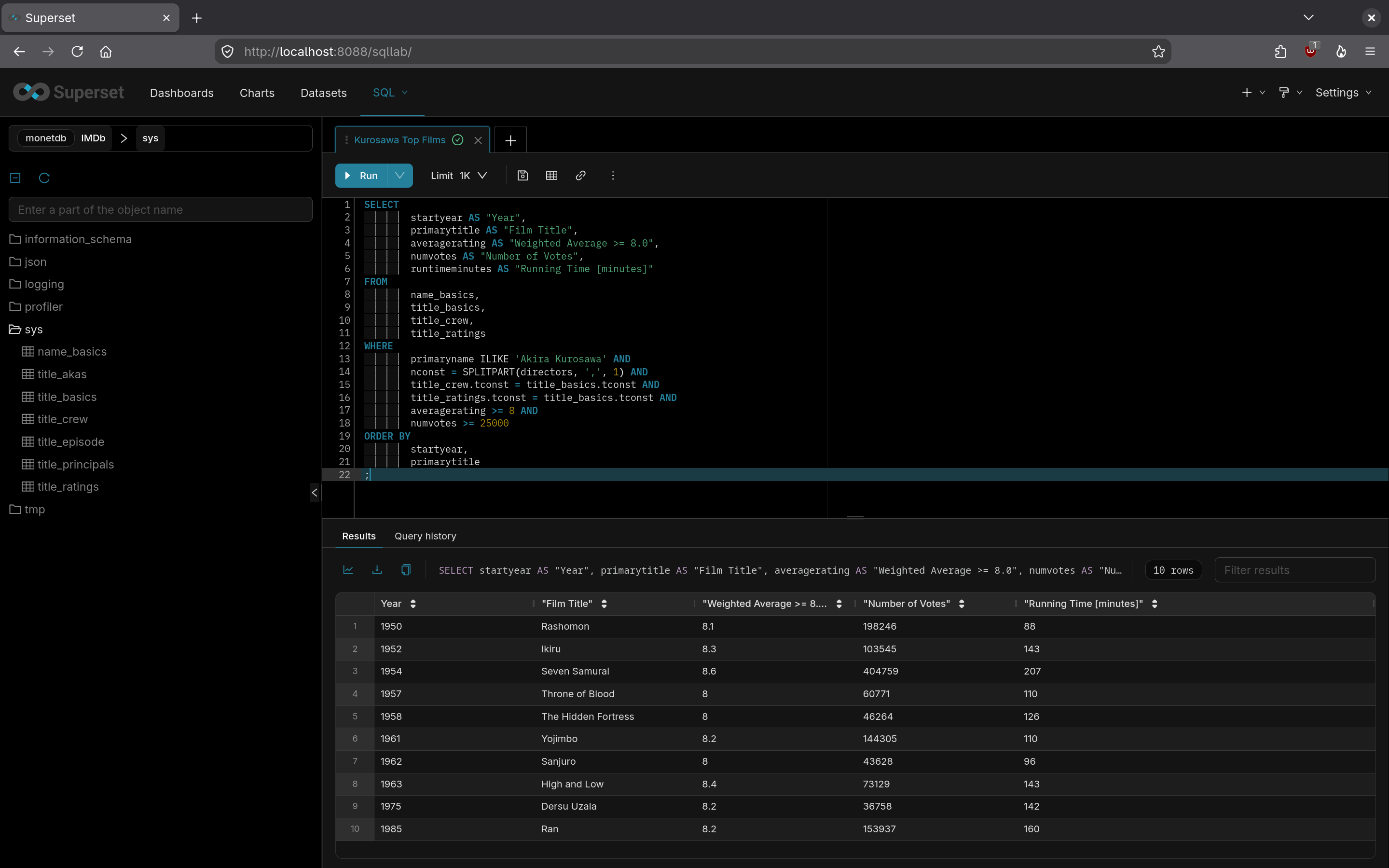
Figure 1 shows how the output should be displayed in the Superset web application.
 |
|---|
| Figure 1: SQL Lab |
Once it is certain the database is connected, you can finally apply the built-in chart and dashboard creation functionalities that are what make Superset a competitive BI tool. Learn more about these features here and feel free to utilize some of the other queries from the aforementioned reference blog post. Happy dashboarding 😉
Addendum: System cleanup for a new setup
In case you would like to redo the setup of this toolkit, you will have to do some housekeeping first.
To begin, remove the Podman container environment if it is still active:
cd ~/path/to/superset
podman compose -f docker-compose-image-tag.yml down
Then exit the superset directory and delete it:
rm -rf ~/path/to/superset
Remove all volumes:
podman volume rm --all
Finally, remove all images:
podman image rm --all